Contents

Start here

Start with the StudioDash overview, then review the Private Beta, Features, and Integrations pages. Those pages explain the product direction, beta access route, and provider coverage before you move into detailed analytics.

StudioDash is currently preparing for a controlled private beta, so public documentation separates implemented coverage from placeholders and roadmap items. That distinction is important across the whole guide.

  • Read Overview for the product purpose and audience.
  • Read Private Beta for availability and invitation context.
  • Read Features for the main StudioDash workflow.
  • Read Integrations for Apple, Google, Cloudflare, advertising, and placeholder provider coverage.

Dashboard and analytics path

Next, read Dashboard, Revenue Analytics, App Store Analytics, and Website & SEO Analytics. Together, these pages explain how StudioDash is designed to bring app, revenue, advertising, website, search, and provider signals into one workspace.

Use these pages to understand how selected-period metrics differ from current operational state. Revenue, downloads, website traffic, and search visibility can be reviewed by period where data exists; provider health, app lifecycle, validation state, and attention items describe the latest known state.

  • Dashboard explains the daily operating surface.
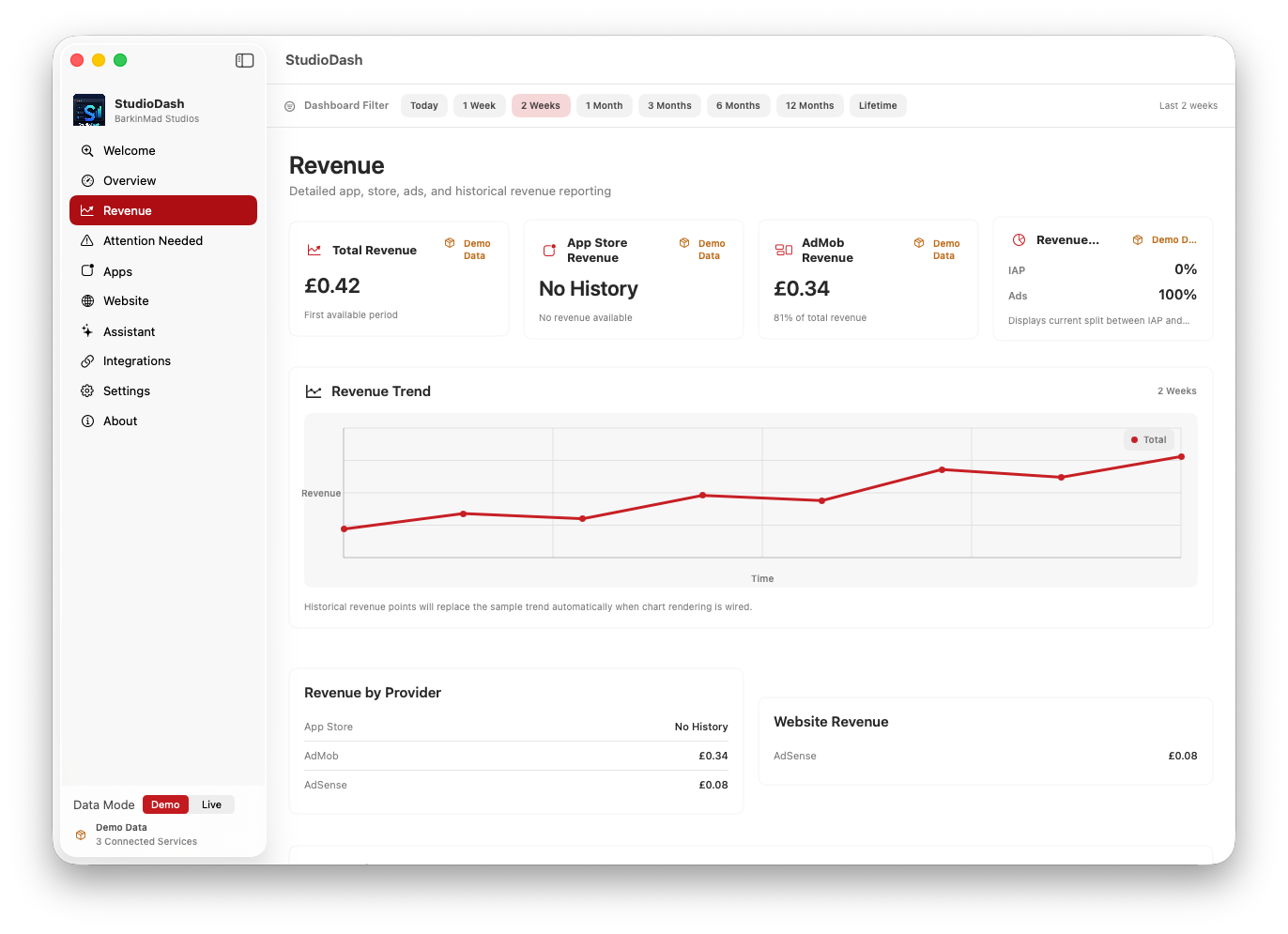
  • Revenue Analytics explains provider totals, app revenue, country/date breakdowns, and trend review.
  • App Store Analytics explains app lifecycle, metadata, downloads, ratings, reviews, and sales-report context.
  • Website & SEO Analytics explains Cloudflare traffic and Google Search Console visibility.

Operations path

For day-to-day operation, read Reporting, Automation & Sync, and Security & Privacy. These pages explain how to interpret reports, understand provider sync state, and approach credentials and local operational data responsibly.

The operating path is where StudioDash documentation is most careful about wording. A missing value may mean no provider history, no data in the selected period, an unconfigured provider, an error, or a planned integration. The documentation should help users tell those states apart.

  • Reporting explains how to review selected-period summaries and provider context.
  • Automation & Sync explains provider health, manual refresh, cache state, and roadmap automation.
  • Security & Privacy explains credential principles, provider permissions, local data, and public documentation boundaries.

Supporting pages

Use FAQ, Release Notes, and Screenshots when you need quick answers, public milestone context, or the current visual walkthrough.

The Screenshots page pairs each current placeholder image with what the screen shows, why it matters, the related workflow, and key capabilities. Other pages may use `Screenshot1` through `Screenshot4` as temporary Feature Showcase images where dedicated page screenshots have not yet been produced.

  • FAQ answers common public questions about availability, platforms, providers, data, reporting, and roadmap items.
  • Release Notes records public-facing documentation, product, beta, and availability milestones.
  • Screenshots provides the current visual walkthrough using the dashboard artwork available in the website repository.

A practical route through StudioDash

The guide is organised around how a developer would evaluate StudioDash: first the product, then providers, then analytics, then operating and privacy detail.

StudioDash documentation is not intended to be read as a loose set of marketing pages. Each page explains part of the same workflow: connect provider context, review app and revenue signals, understand website and search visibility, read sync state, and keep roadmap claims separate from released behavior.

  • Start with overview, private beta, features, and integrations.
  • Use dashboard and analytics pages to understand the operating model.
  • Use reporting, sync, security, FAQ, release notes, and screenshots for supporting detail.
StudioDash dashboard overview used as a temporary guide showcase
The overview screenshot is used as the temporary guide showcase until a dedicated guide image is produced.